

How do I become a BusyBee?
How to become a BusyBee
Set up your profile, find suitable tasks and apply: Here we show you step by step how to get started as a BusyBee and find your first task.
Start guide
Complete your profile
Your profile is your personal business card on BusyBees. The more complete it is, the easier it is for clients to see whether you are a good match for their task.
You can find your profile settings under User Area → Your Services → Settings.
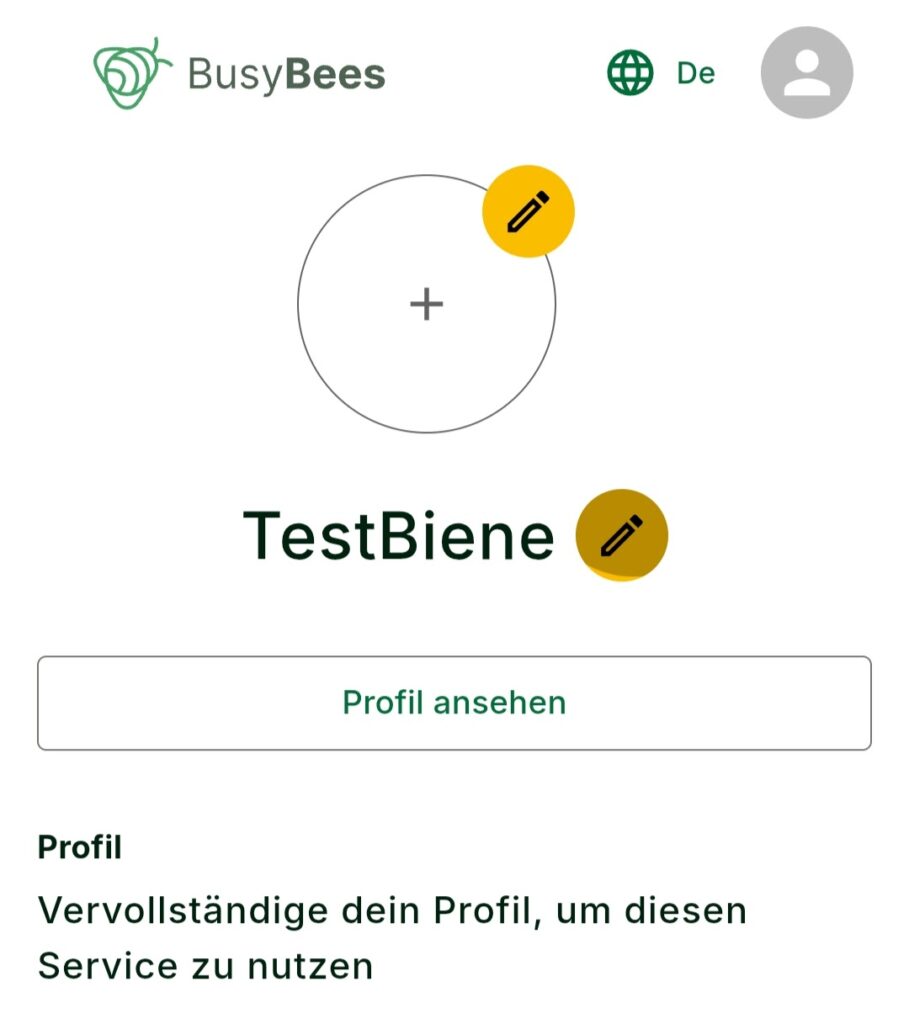
Profile picture & username
Upload a profile picture and choose a suitable username.
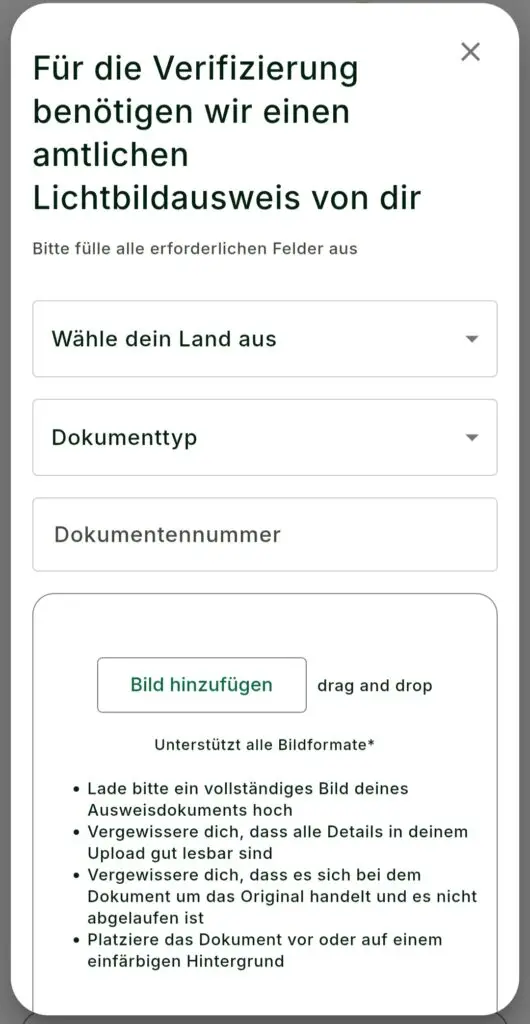
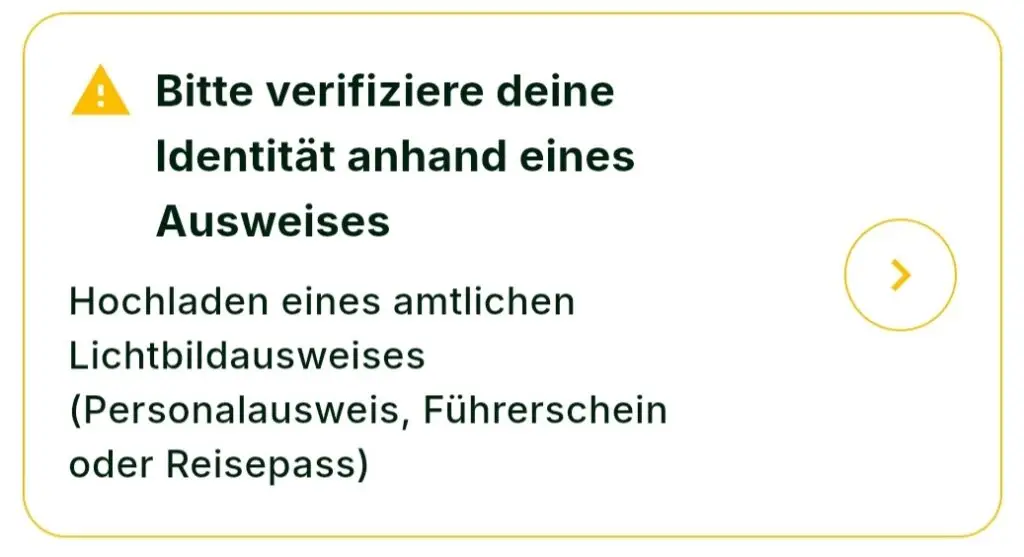
Verify your identity
Upload a photo of your ID to confirm your identity.
Why? Verified profiles look more trustworthy and help create confidence and security for everyone involved.
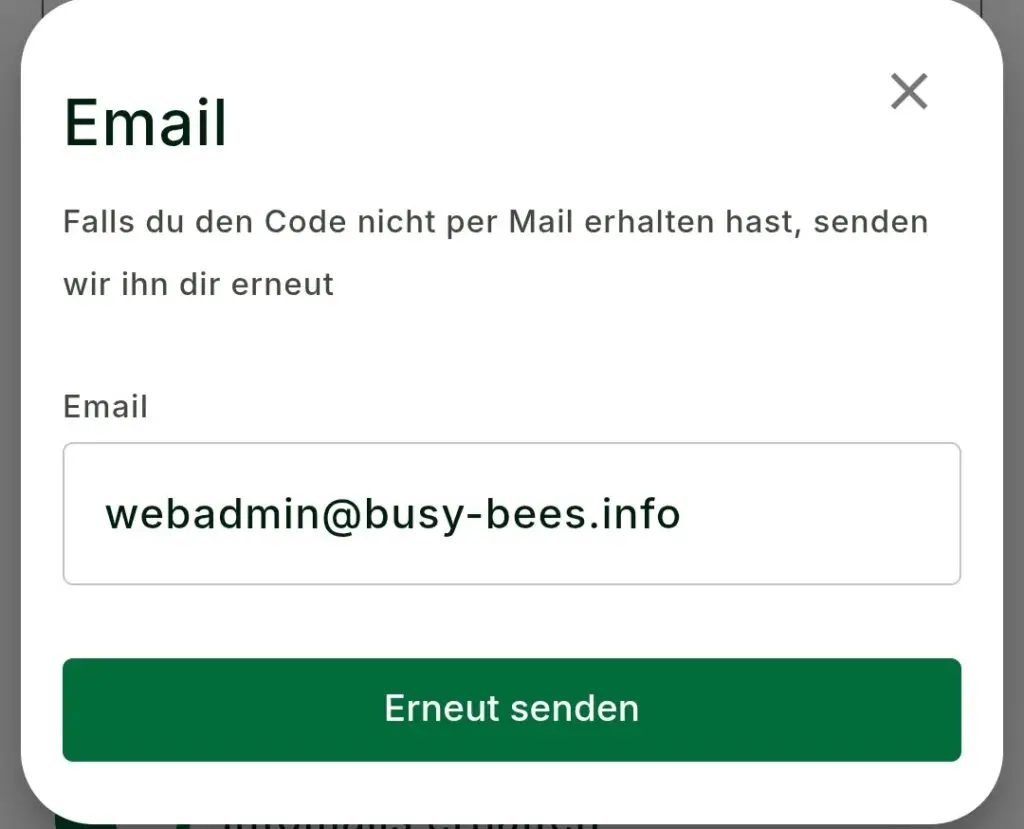
Confirm your email address
If you have not verified your email address during registration, you can request a new confirmation code here.
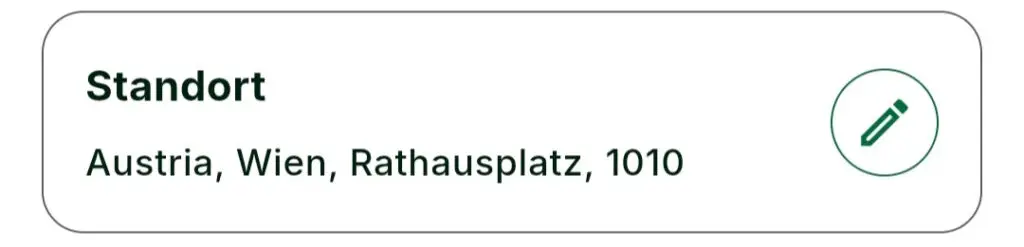
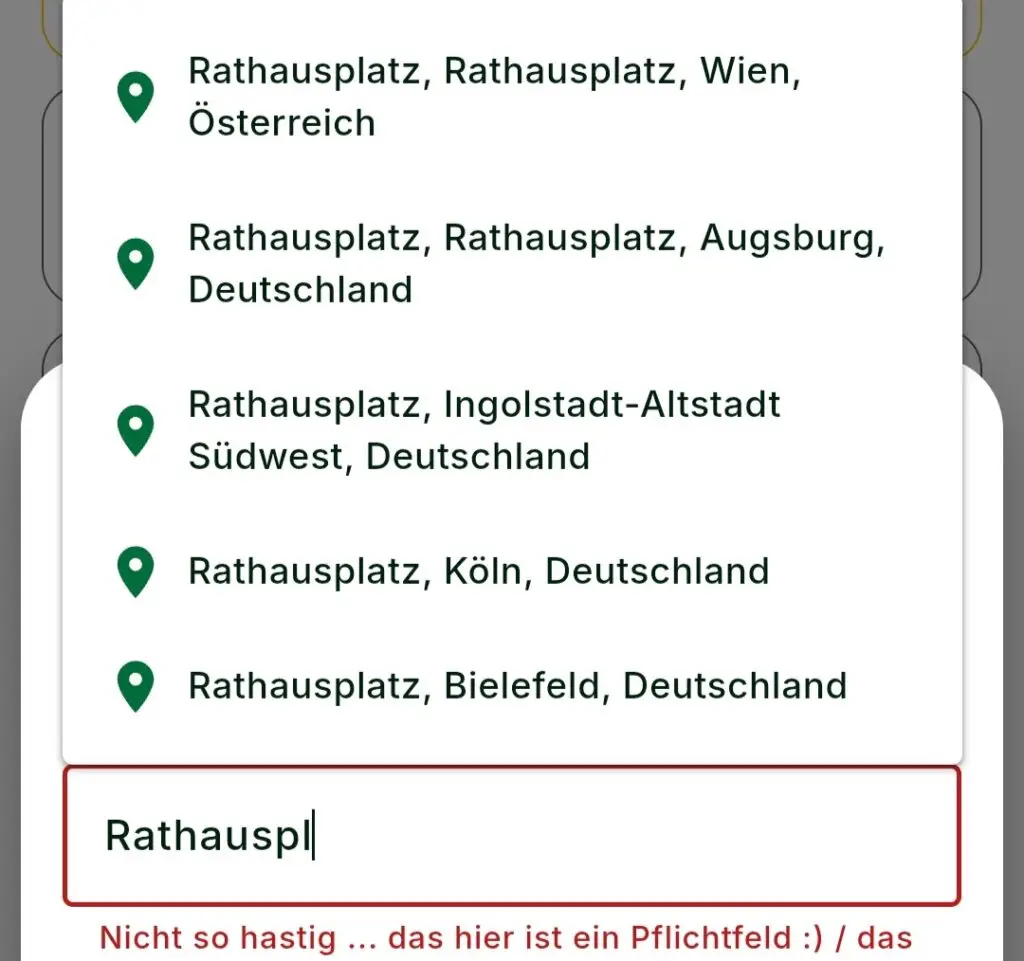
Set your location
Enter your address and select your exact location. You do not need to provide a house number — street and city are enough.
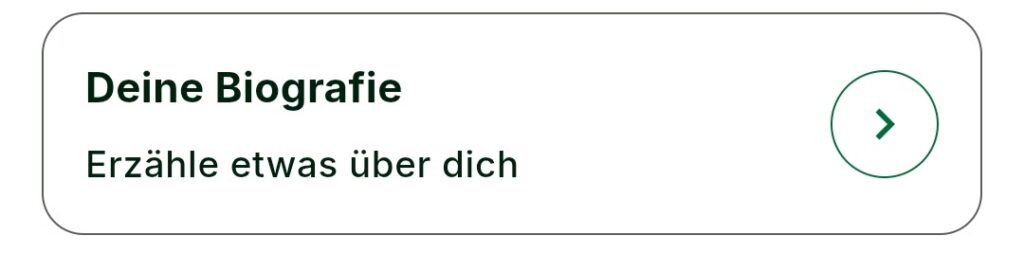
Fill out your bio
Show who you are — whether you are an individual or a business — and why clients can trust you with their tasks.
Briefly describe what you do, your strengths and what makes you or your team stand out.
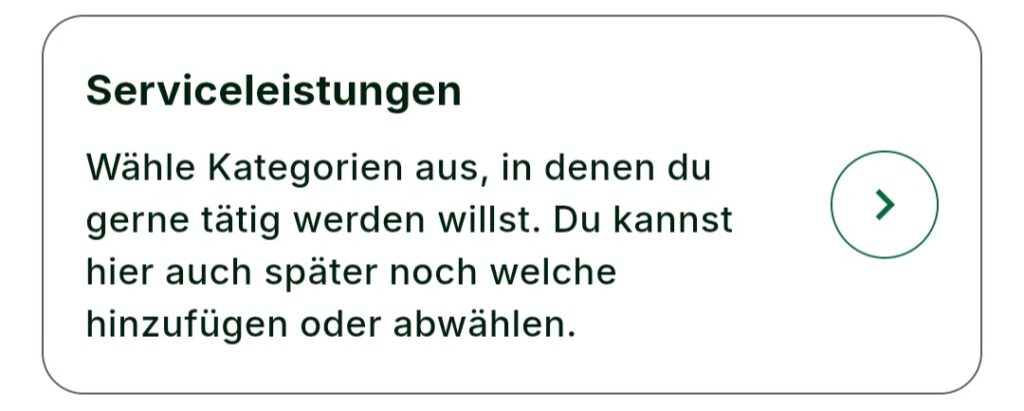
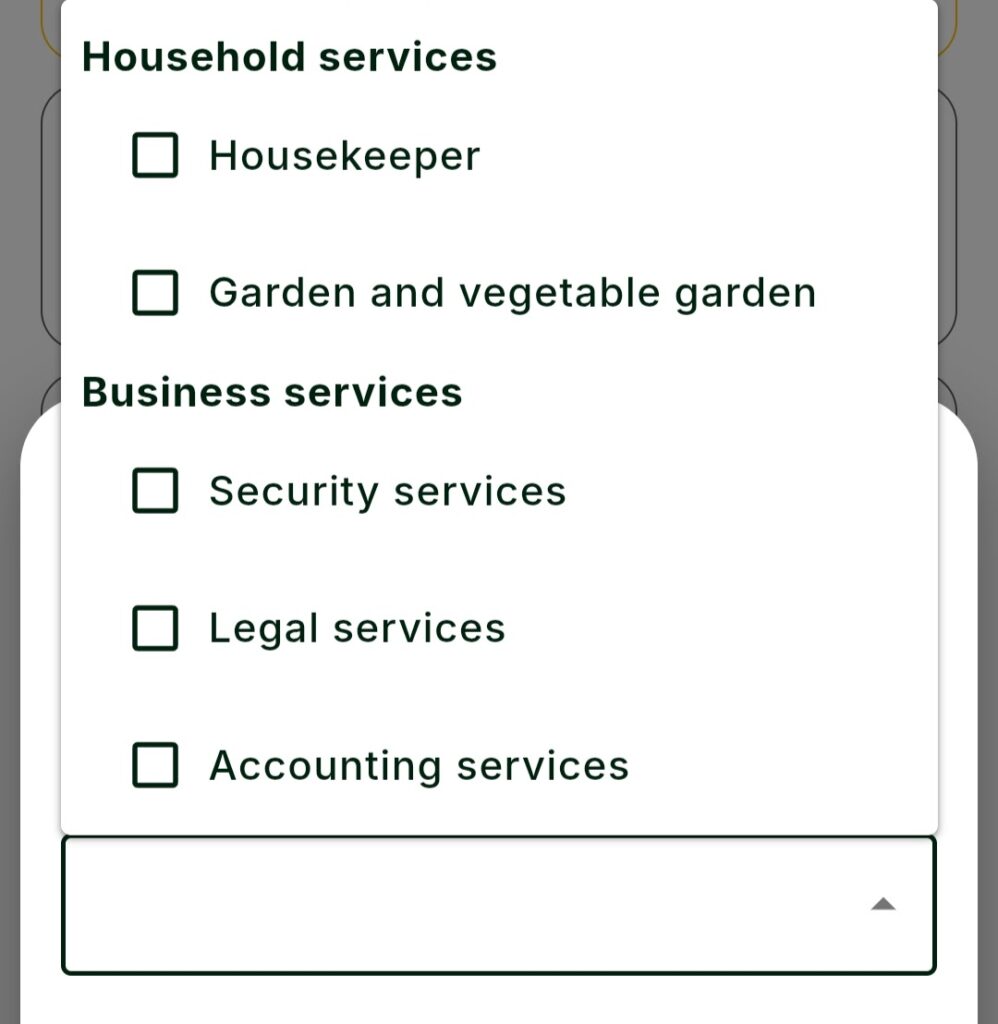
Select service categories
Choose the categories that best match the services you offer — for example housekeeping, gardening or childcare.
You can select multiple categories and add or remove them at any time.
Can’t find the right category? You can suggest a new one via our contact form.
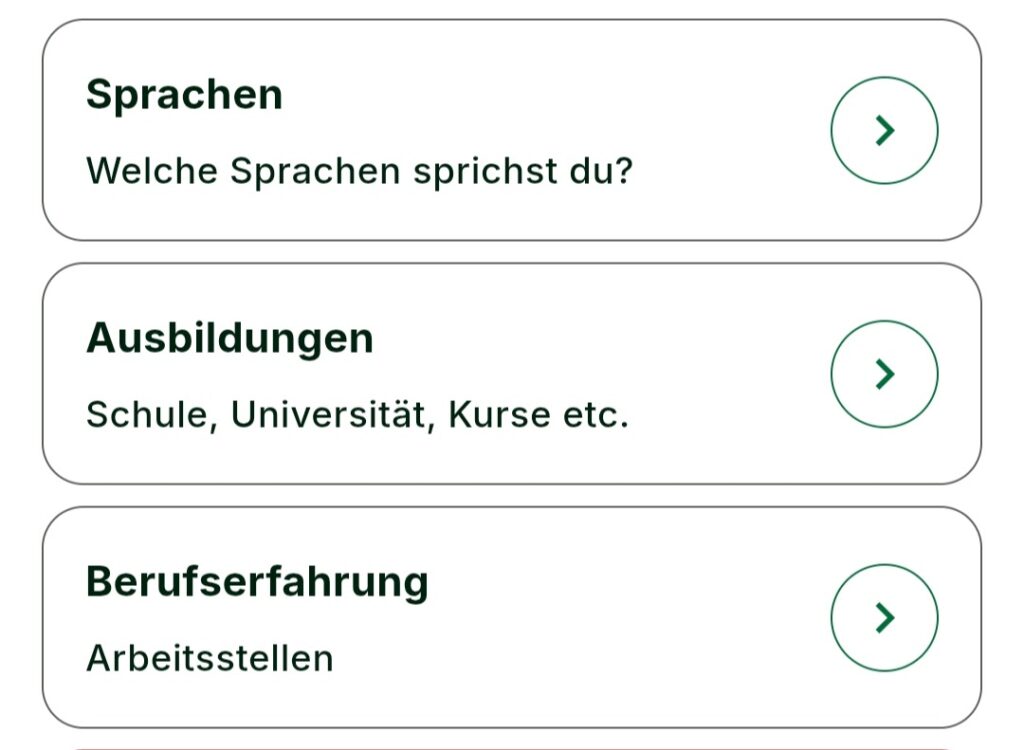
Languages, education & work experience
🌍 Languages Select all languages you speak — especially useful for tasks such as tutoring or caregiving.
🎓 Education Add relevant courses, certificates or qualifications.
💼 Work experience Add relevant jobs or activities that show your practical experience.
Find suitable tasks
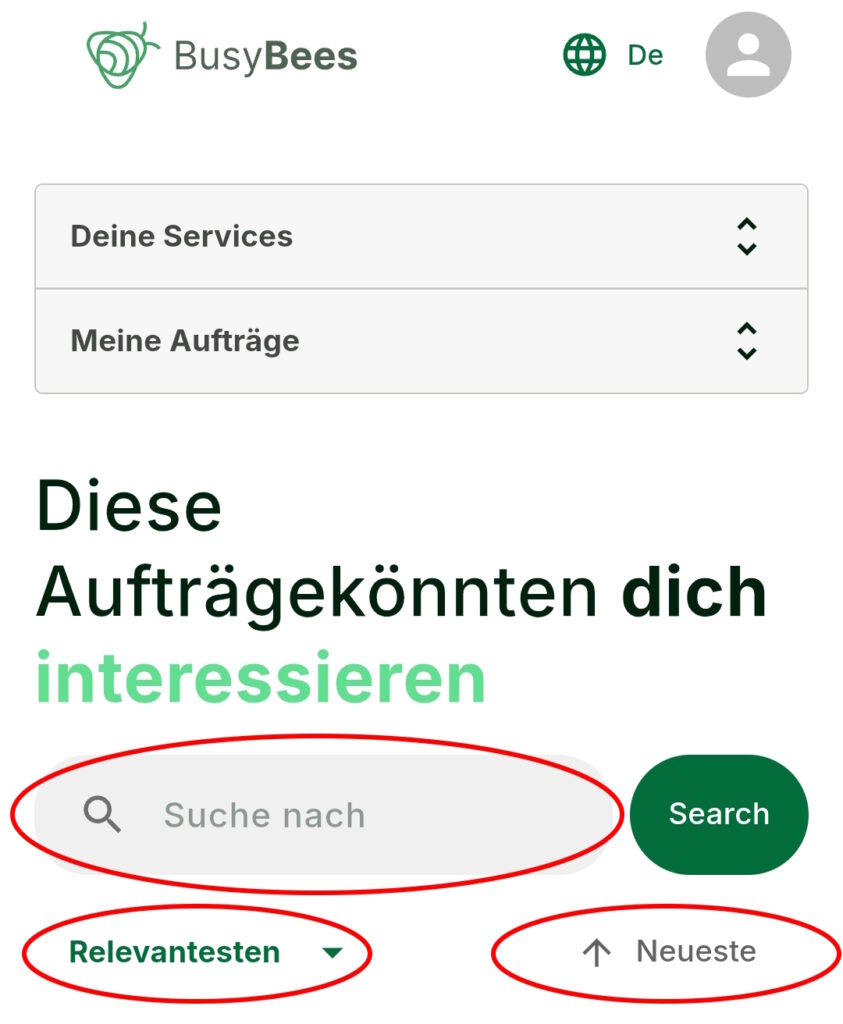
Your account automatically shows you suitable tasks based on your profile, for example your location, service categories and languages.
You can narrow down the results using filters and the full-text search.
Search by service, such as cleaning, tutoring or gardening, by location, such as Vienna or Salzburg, or directly by postcode.
Good to know If no suitable results appear, set the filter to “All” so you do not miss any available tasks.
Apply for a task
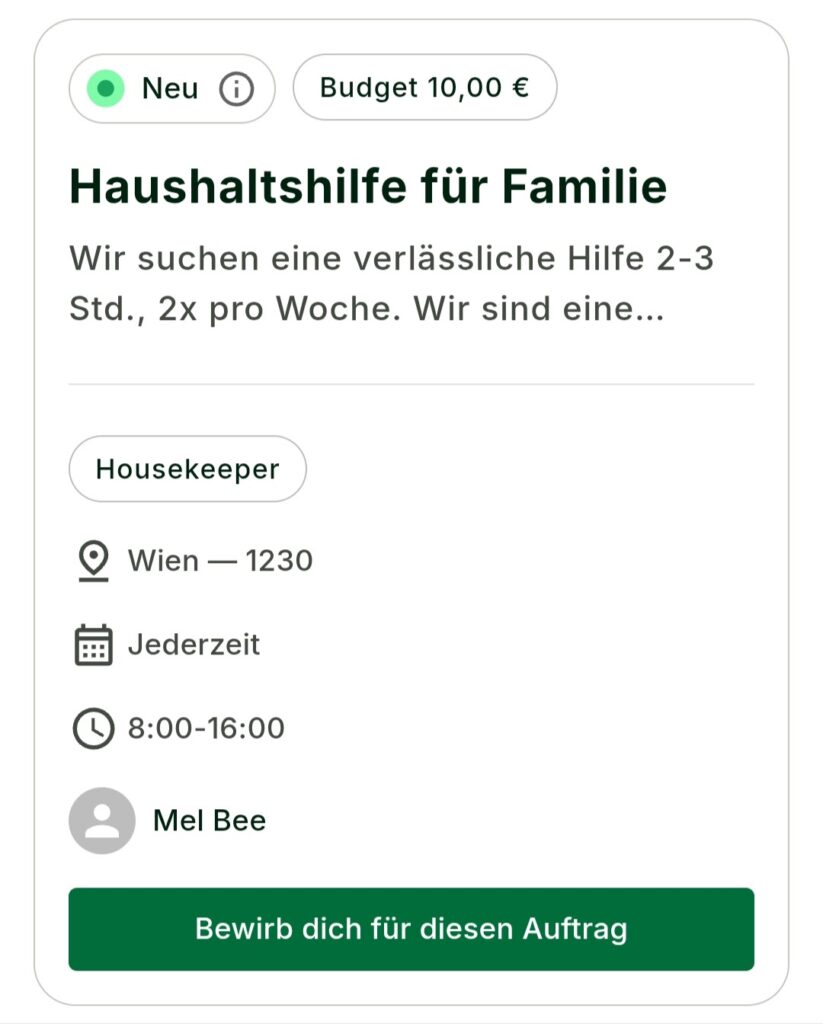
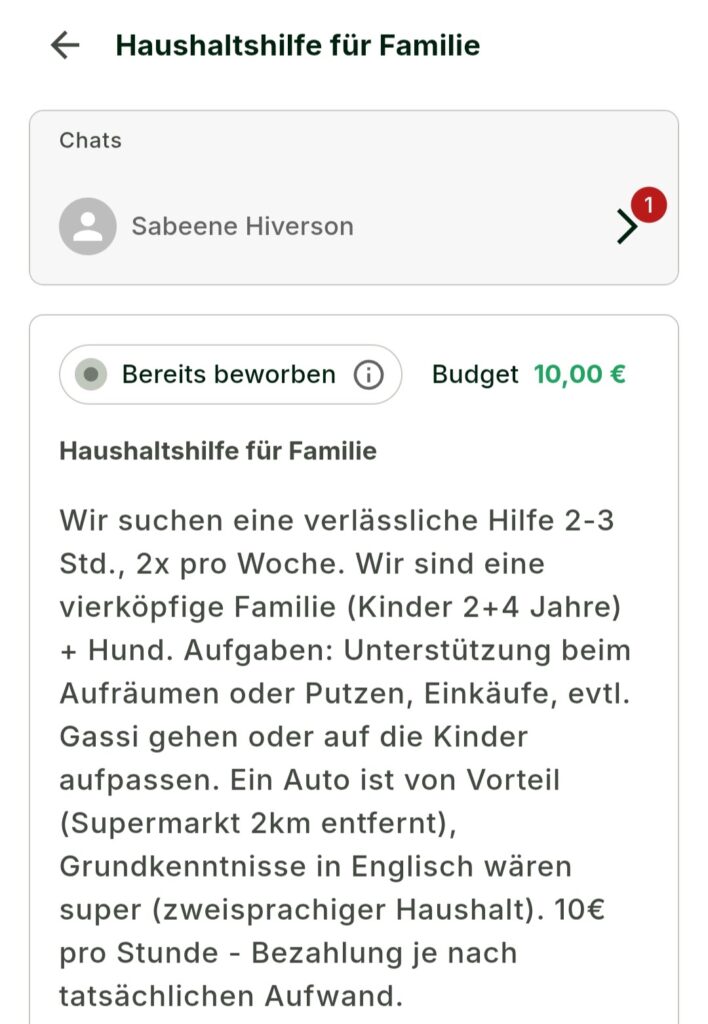
Find a suitable task near you and click “Apply for this task” to view the details.
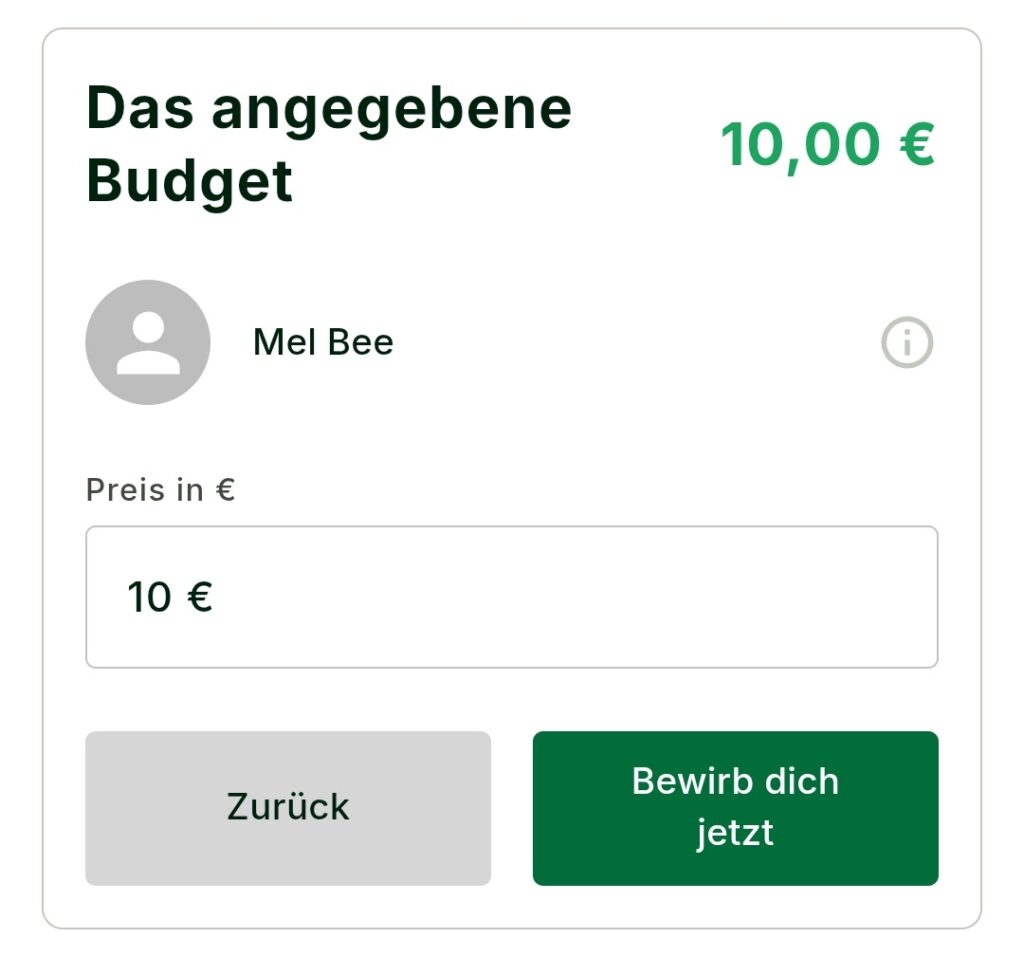
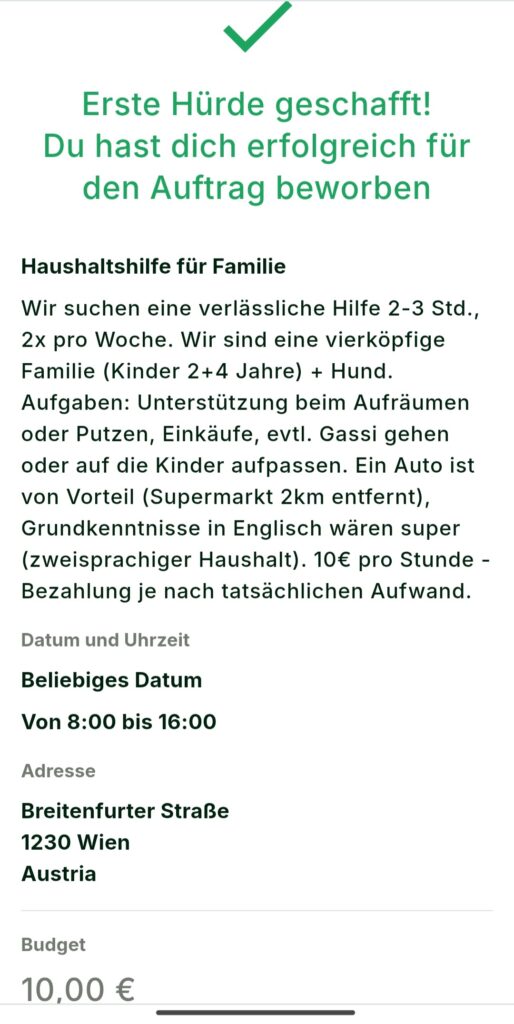
If you are interested, click “Apply now” to submit your application.
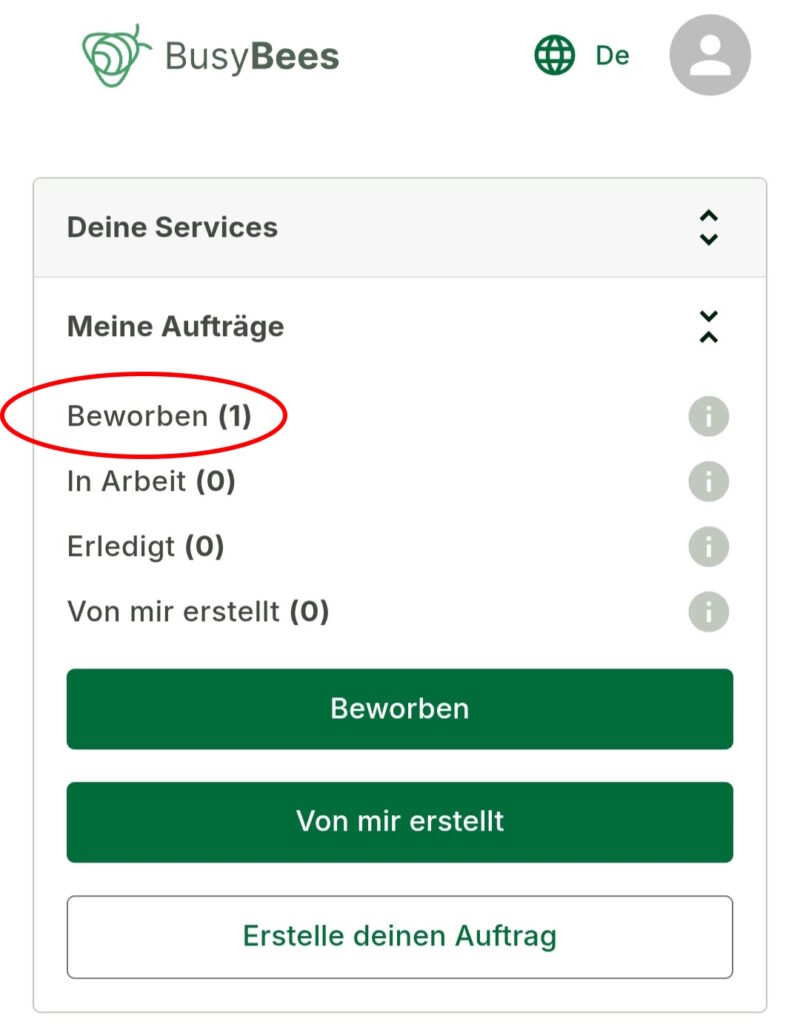
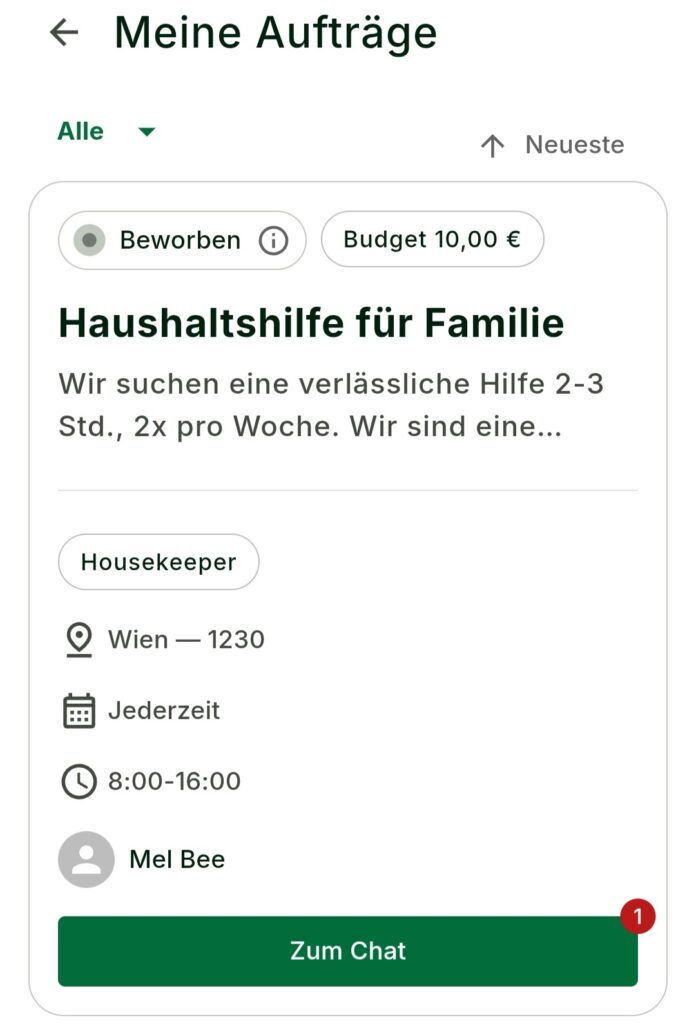
You can find all tasks you have applied for under “My Tasks”, so you can keep track of your applications.
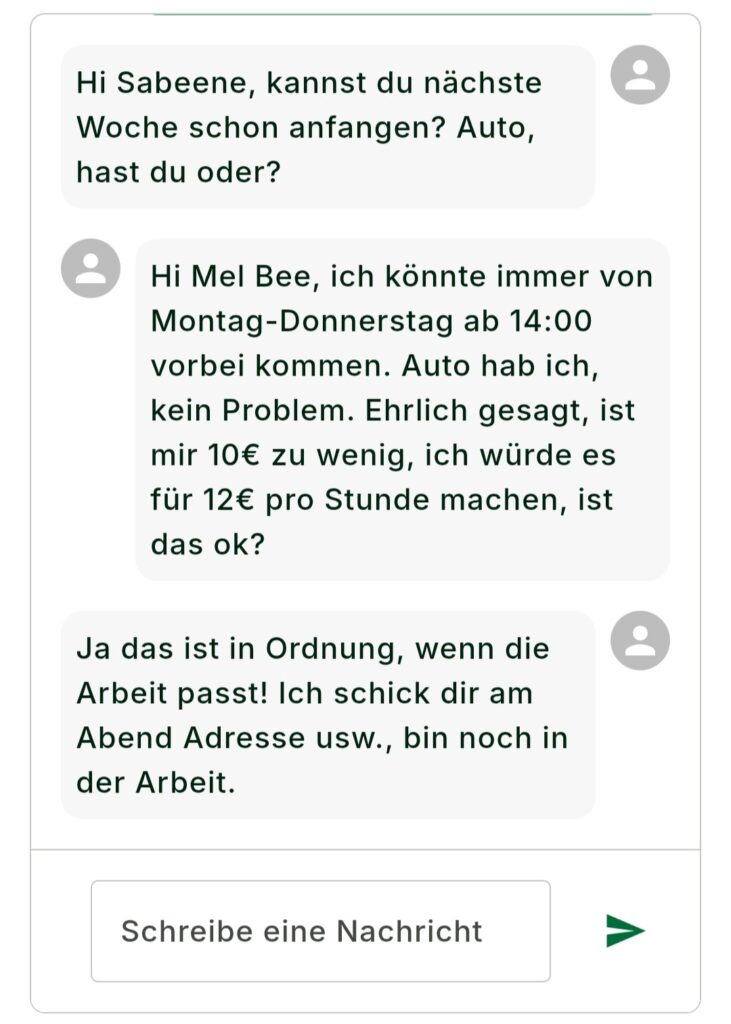
Please be patient It may take a little while for the client to respond to your application. Once they reply, you can discuss the details directly in the task chat.
Use the task chat
As soon as a client responds to your application, a task chat opens automatically.
You can find it under User Area → My Tasks → Applied → Go to Chat.
A small number on the chat button shows you when there is a new message, so you do not miss a reply.
Application accepted The task status changes from “Applied” to “In Progress”.
The task does not go ahead Your application remains under “Applied” until the client marks the task as “Completed”.
Good to know Check “My Tasks” regularly so you can respond quickly to new messages and updates.
Find your next task.
Your profile is set up and you know how applications work. Now you can discover suitable tasks, apply and get in touch with clients directly.