

Step-by-step guide to creating a task
How to create a task on BusyBees
Need a helping hand? This step-by-step guide shows you how to create your task, provide all the important details and find suitable Bees for the job.
Start the guide
Choose a category
First, choose the category that best matches your task. This helps show your listing to the right Bees and makes it easier for suitable helpers to find it.
Need help in the garden? Choose “Home & Garden”. Looking for professional advice instead? Then “Coaching & Consulting” may be the right fit.
Can’t find a suitable category? Use our contact form to suggest a new one. We’ll review your suggestion and continue expanding our range of categories.
Good to know Even small tasks with a limited budget can quickly find suitable helping hands on BusyBees.

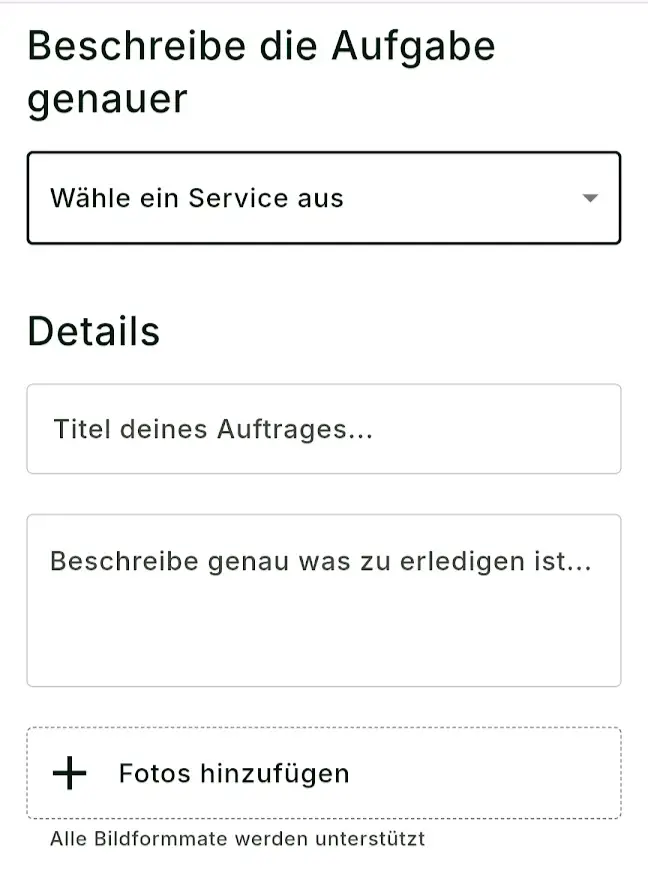
Describe your task
First, choose the appropriate service from the dropdown menu. If the service you need isn’t listed, select “Miscellaneous”.
Then give your task a clear title and describe exactly what needs to be done. Details such as area, length, quantity or available tools help Bees estimate the work involved.
You can also add images to make the scope and requirements of the task easier to understand.
Service: Gardening
Title: Garden maintenance
Description: Mow the lawn (150 m²), trim 12 m of hedge and remove weeds. Tools and ladder are available. Green waste should be taken to the nearby organic waste container.
Service: Tutoring
Title: Math tutoring for graduation prep
Description: Tutoring for 2 students, 2 hours per week each. Focus on probability theory. Lessons can be in person or online.
Good to know Does a Bee need more information about your task? No problem – you can discuss any open details directly in the task chat.
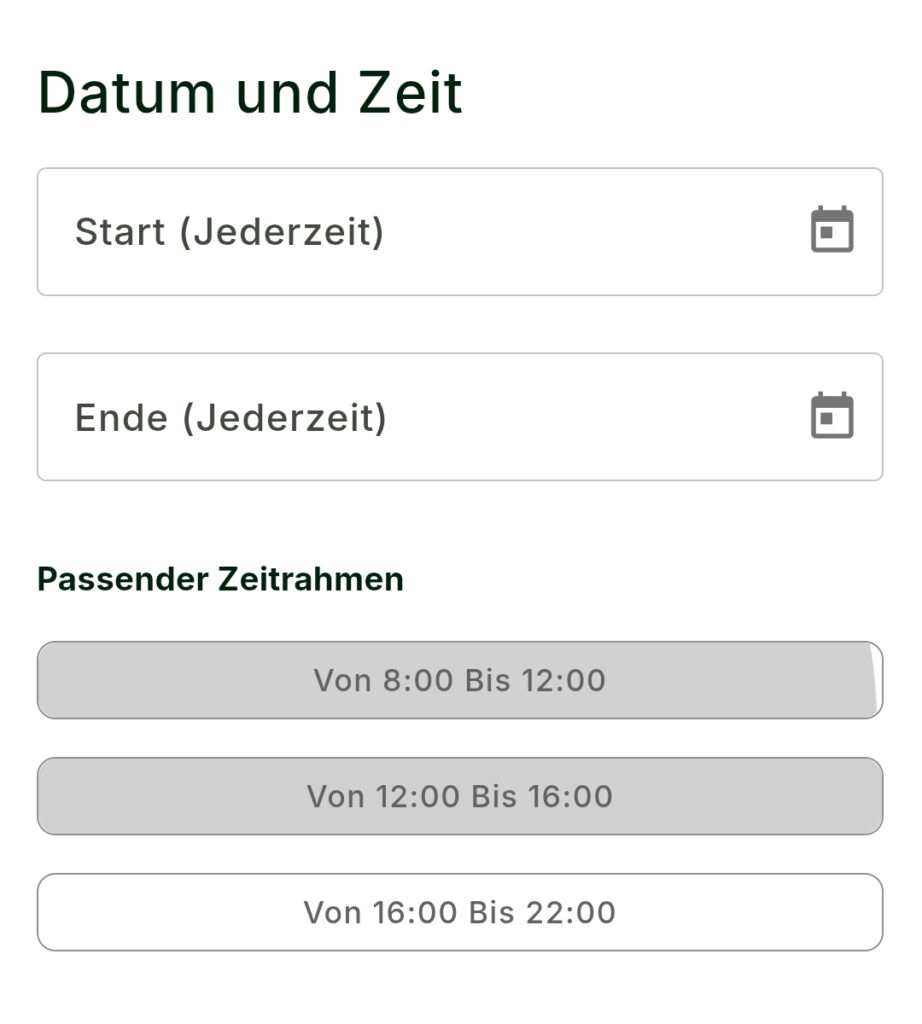
Choose a date and timeframe
Enter your preferred date or select one using the calendar icon.
Don’t have a fixed date, or can the task be completed flexibly? Simply leave the date field blank. The “Anytime” setting will remain active automatically.
Next, choose a suitable timeframe. You can select more than one time window.
Painting your bathroom
Date:
Start: Anytime
End: Anytime
Timeframe:
4:00 PM to 10:00 PM
Tutoring for your children
Date:
Start: Anytime
End: 30.05.20XX
Timeframe:
12:00 PM to 4:00 PM
Good to know No fixed date? No problem. Leave the field blank and arrange the exact date with your Bee later in the chat.
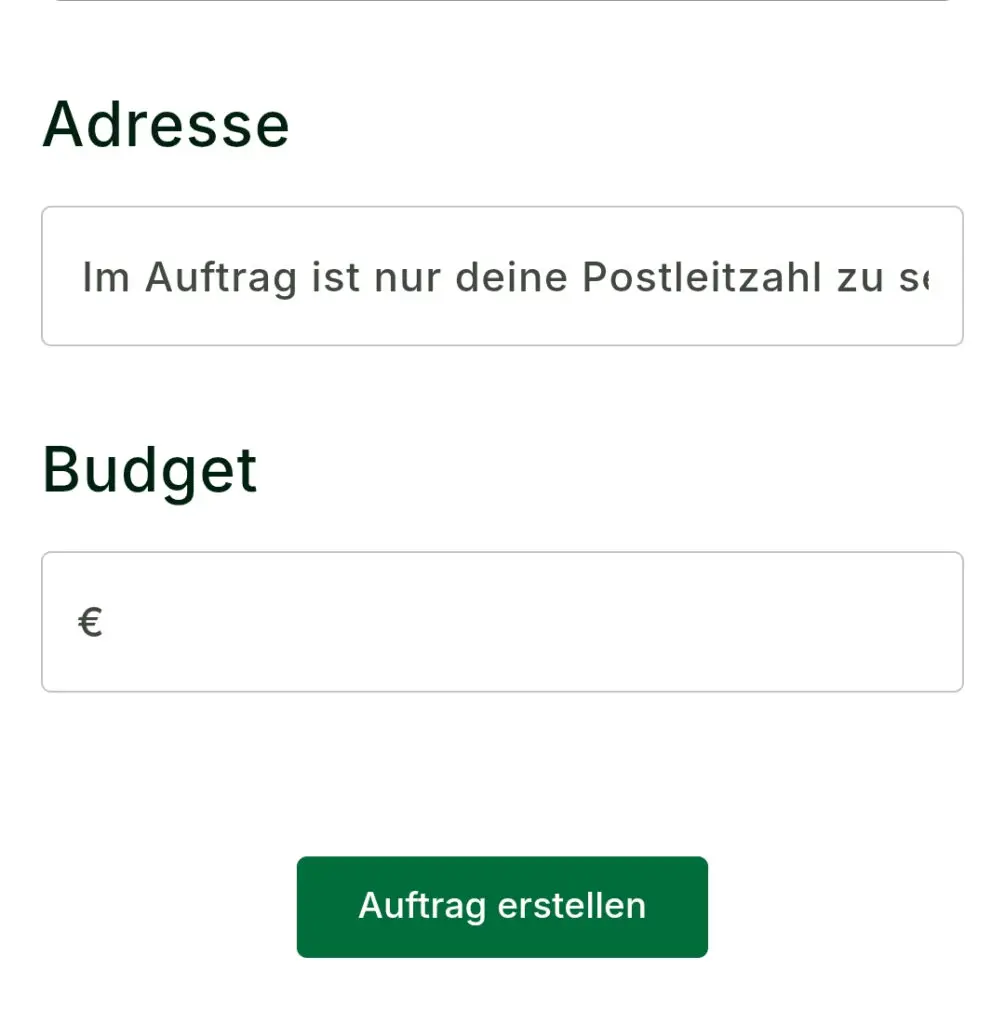
Enter the address & set your budget
Enter the address where your task should be completed. From the dropdown menu, select at least the correct street and ZIP code.
We need this information to check whether your location is available for a task. Currently, tasks can be created within Austria.
Your address stays private Only your ZIP code is shown in the published task – not your full address.
Next, set your budget – the amount you are willing to spend on completing the task. Consider the scope of the work and whether materials or additional services are required.
Paint a 15 m² bathroom
You take care of masking and moving the furniture yourself
and provide the paint.
Complete painting of a 15 m² bathroom
The Bee buys the materials, masks the room, moves furniture
and takes care of minor repair work.
Good to know Not sure what a fair budget is? Simply enter what completing the task is worth to you. Bees can make you a counteroffer.
Your task is ready.
Review your details one more time and publish your task. Suitable Bees can then discover your listing and apply for it.